> ## Documentation Index
> Fetch the complete documentation index at: https://docs.decentri.org/llms.txt
> Use this file to discover all available pages before exploring further.
# Branding
> Configure your client’s brand identity with a logo and primary/secondary colors for buttons, charts, and UI elements.
## Overview
With **Branding** you can upload the client’s **logo** (shown in the navigation bar and login pop-up) and set **primary** and **secondary** colors for buttons, charts, and other UI elements.
You can configure branding per **client** (tenant) from that client’s token overview.\
Go to **Client’s token → Offering → Branding**.
***
## 1. Upload the logo
1. In the dashboard, go to **Client’s token → Offering → Branding**.
2. Click **Upload logo** and choose a PNG or SVG (recommended: transparent background).
3. Save.
**Example:**
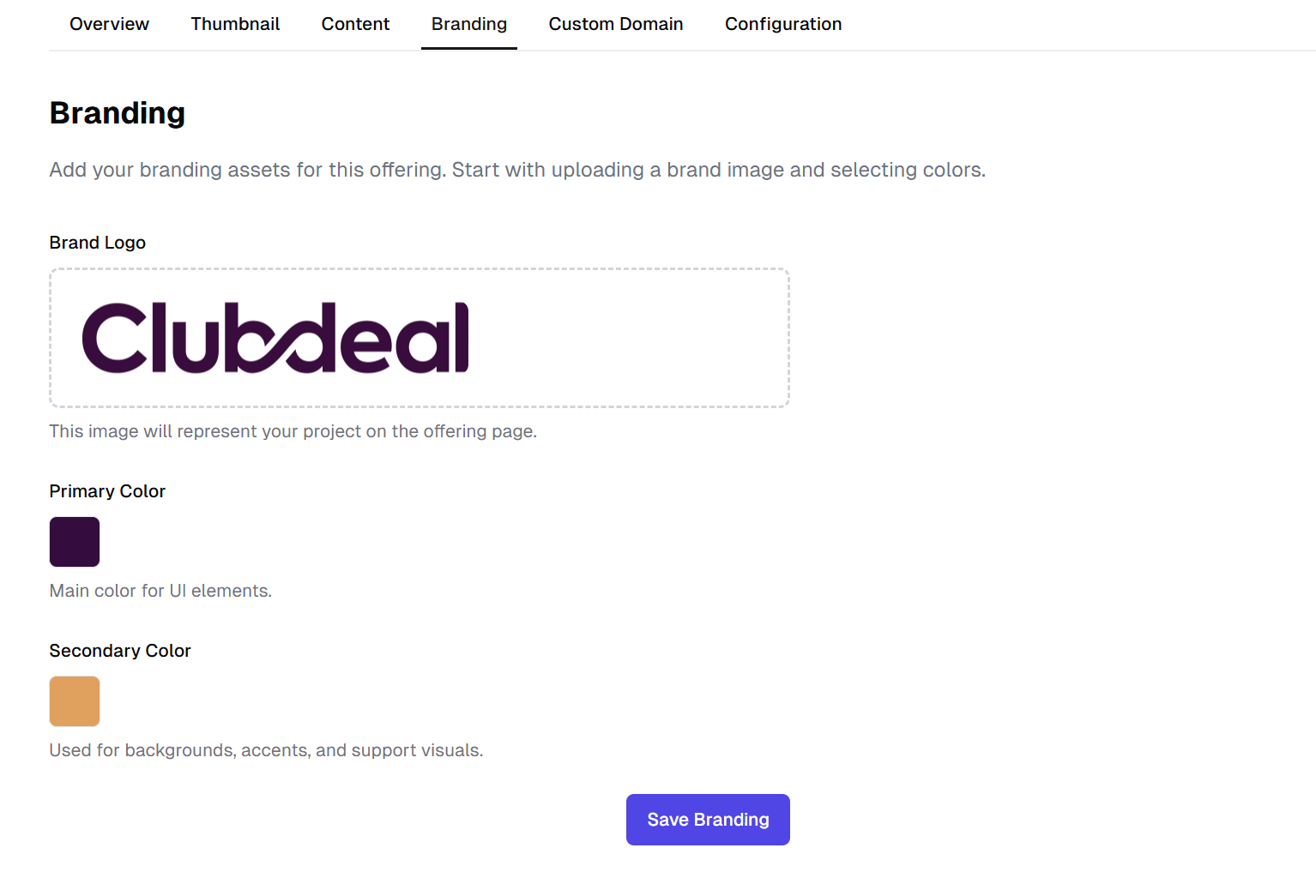 **Tip:** Use an SVG for high-quality rendering on all screens. Leave sufficient padding around the logo.
***
## 2. Set colors
Configure the **Primary color** and **Secondary color**. These are used for **buttons**, **charts**, **accents**, and various **UI elements**.
1. Open **Branding → Colors**.
2. Set **Primary** (main color) and **Secondary** (accent color) using HEX values.
3. Review buttons and charts on the Offering page and in the Holder Portal.
**Example:**
**Tip:** Use an SVG for high-quality rendering on all screens. Leave sufficient padding around the logo.
***
## 2. Set colors
Configure the **Primary color** and **Secondary color**. These are used for **buttons**, **charts**, **accents**, and various **UI elements**.
1. Open **Branding → Colors**.
2. Set **Primary** (main color) and **Secondary** (accent color) using HEX values.
3. Review buttons and charts on the Offering page and in the Holder Portal.
**Example:**
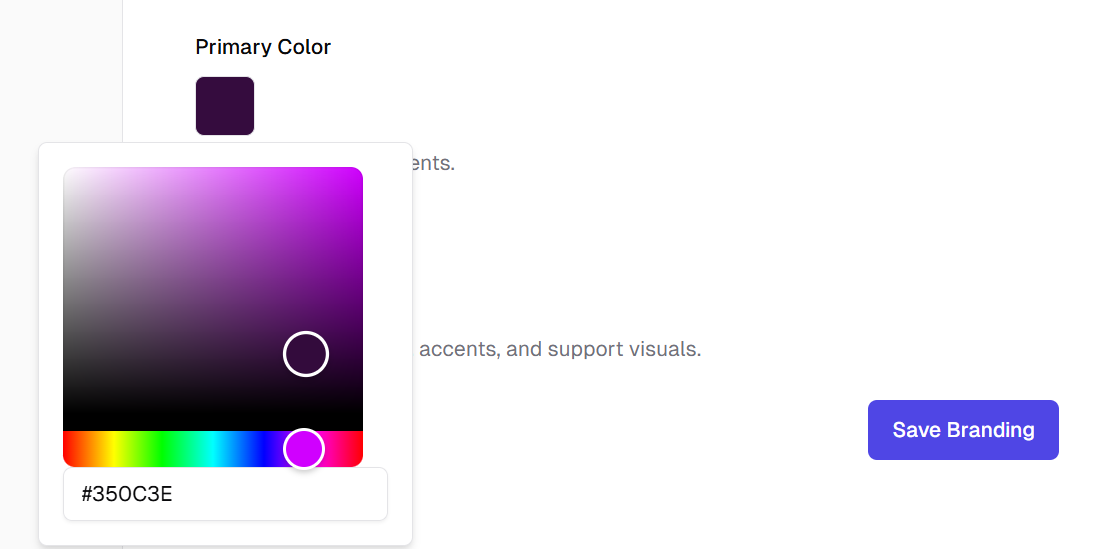 **Tip:** Use the HEX-values from your own design system or brand guidelines.
***
## 3. Preview & checks
See how branding applies to buttons, links, and components right away.
**Example:**
**Tip:** Use the HEX-values from your own design system or brand guidelines.
***
## 3. Preview & checks
See how branding applies to buttons, links, and components right away.
**Example:**
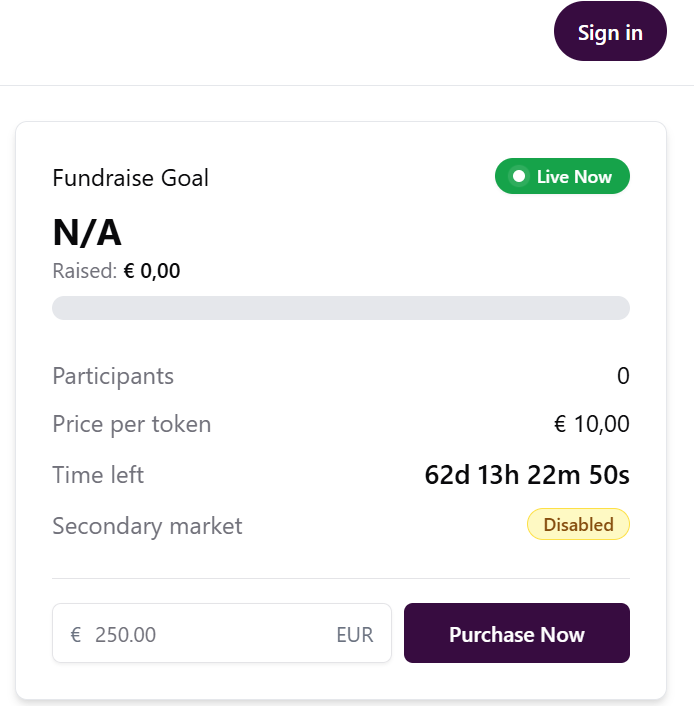 **Tip:** Also check the **login pop-up** and **navigation bar** — low-contrast logos are less visible and may blend into the background.
***
## Accessibility (contrast & readability)
**Heads-up (contrast):**\
A primary/secondary color that’s too light can hurt readability and conversion.
**Approach:** Test light/dark variants and verify states (hover/active/disabled). If the palette is very light, consider a **neutral button** color with an **accent** for calls-to-action.
***
## Frequently asked questions
**Can I set a custom domain per client?**\
Yes. The **custom domain** is configured by Decentri. Provide the desired domain to us.
**Where does the logo appear?**\
In the **navigation bar** and in the **login pop-up** of the Holder Portal.
**Which file formats are supported?**\
SVG or PNG (recommended: transparent background, sufficient padding).
***
## Next steps
* Finished branding? Continue with the **Offering page** (thumbnail, content, and configuration).
**Good to read:**
* [Organizations — full guide](/guide/organization)
* [Brands & Companies — full guide](/guide/companies)
**Tip:** Also check the **login pop-up** and **navigation bar** — low-contrast logos are less visible and may blend into the background.
***
## Accessibility (contrast & readability)
**Heads-up (contrast):**\
A primary/secondary color that’s too light can hurt readability and conversion.
**Approach:** Test light/dark variants and verify states (hover/active/disabled). If the palette is very light, consider a **neutral button** color with an **accent** for calls-to-action.
***
## Frequently asked questions
**Can I set a custom domain per client?**\
Yes. The **custom domain** is configured by Decentri. Provide the desired domain to us.
**Where does the logo appear?**\
In the **navigation bar** and in the **login pop-up** of the Holder Portal.
**Which file formats are supported?**\
SVG or PNG (recommended: transparent background, sufficient padding).
***
## Next steps
* Finished branding? Continue with the **Offering page** (thumbnail, content, and configuration).
**Good to read:**
* [Organizations — full guide](/guide/organization)
* [Brands & Companies — full guide](/guide/companies)